
DPM & LTM Mapping: Your First-Time Walkthrough
What to Check Before You Certify the Route
New to rural route mapping? Start with DPM, then LTM, then compare the totals. This walkthrough explains what each screen is trying to describe, what to check, and what not to guess.
Start here: DPM is WHERE. LTM is HOW.
If you are new to this, do not start by trying to memorize every button on the computer. Start with two ideas.
DPM — Delivery Point Management — describes where delivery happens. LTM — Line of Travel Manager — describes how the route travels between those delivery points.
If your brain is already full, remember this: DPM = where. LTM = how.
- DPM: Where does the carrier stop? Where is the mailbox? Where does the vehicle park for a door trip? Where is the actual door?
- LTM: Which roads does the route use? Where does it retrace? Where are the traffic control points? Does the path match the route you actually run?
The order matters
Do this in the same order every time. It keeps the job from turning into one giant mapping problem.
- Check the route information you already have.
- Review and correct DPM.
- Review and correct LTM.
- Compare the totals and route summary.
- Only certify when the route on the screen matches the route you are responsible for.
Before you change anything, save a baseline
This is not a special USPS requirement. It is a carrier-side habit I strongly recommend, especially if you inherited a route or have not reviewed the mapping in a while.
Write down or save the important numbers before you start. That gives you something to compare against if a value changes unexpectedly.
- Current route mileage.
- Curbside and centralized delivery totals.
- CBU/unit counts and parcel-locker counts.
- Authorized dismounts and known dismount-distance figures.
- Traffic-control-point counts.
- Current mapping or evaluation date if shown.
- Any odd route areas you already know need attention.
Bring the route with you
The computer can show you a map. It cannot remember the route for you. Bring whatever helps you compare the screen with the real route.
- The current edit book or the latest address changes that were processed.
- A simple list of CBUs, dismounts, business clusters, unusual park points, and recent delivery changes.
- A reminder of traffic controls you actually encounter on the authorized line of travel.
- Known dismount-distance records or measurements.
- Notes about retraces, turnarounds, private roads, divided roads, dead ends, strange box placement, or doors that are reached from somewhere other than the mailbox.
Step 1 — DPM: make the delivery points match reality
DPM starts with the route's addresses. Your job is to make sure the mapped delivery points describe what you actually do at each address or stop.
You will see four ideas that sound similar at first. They are not the same thing.
The four DPM points
A very simple example: you may stop on the shoulder at the mailbox for normal mail, but park farther up the driveway when you need to take a parcel to the porch. Those are different points.
Do not put every point on the mailbox just because the mailbox is easy to see on the map.
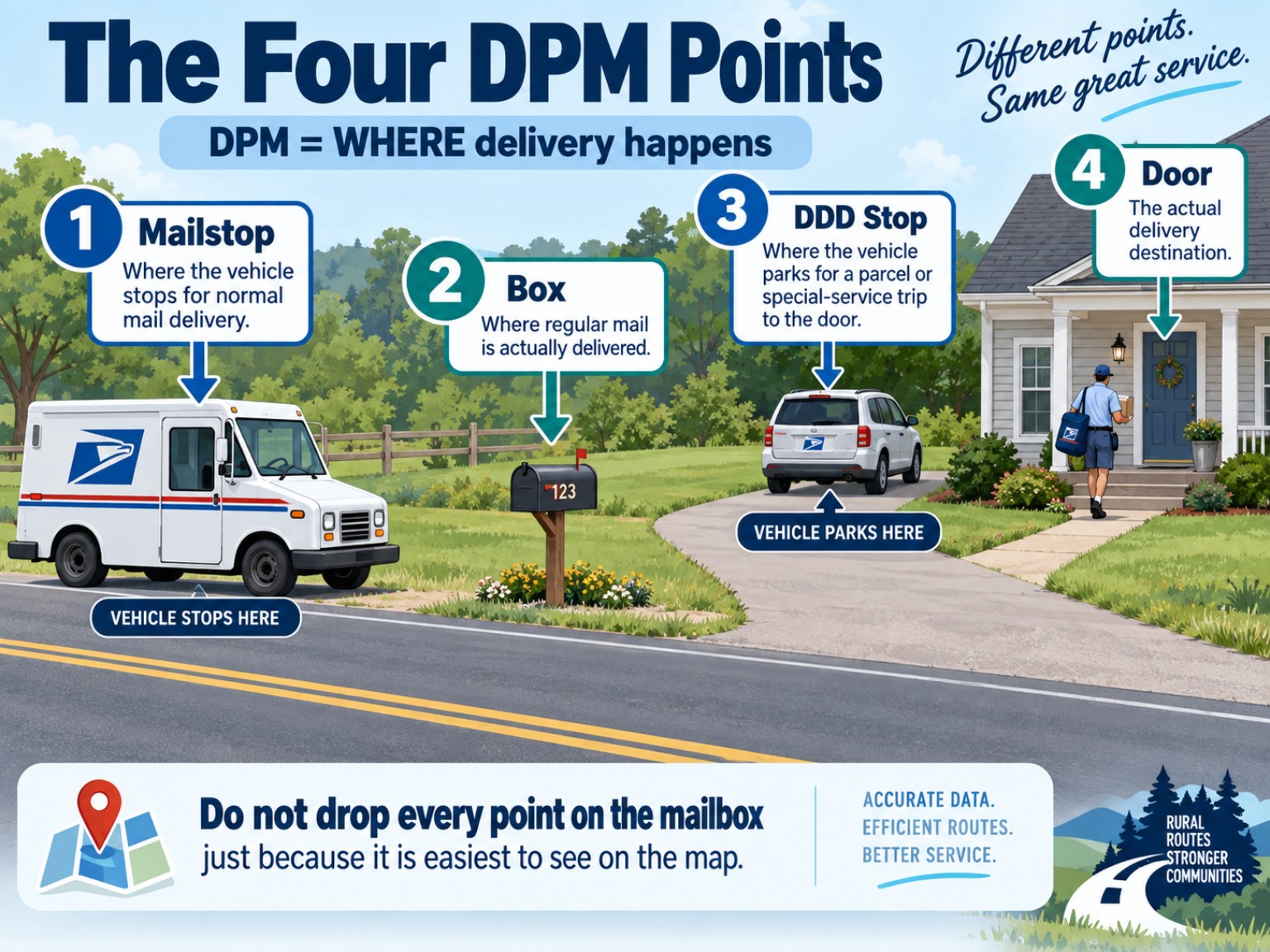
- Mailstop — where the vehicle stops for normal mail delivery.
- Box — where the regular mail is actually delivered.
- DDD stop — where the vehicle is parked for a parcel or special-service trip to the door.
- Door — where the customer actually receives the parcel or special-service item.
CBUs and shared stops: slow down here
A single place where you stop the vehicle can serve several centralized delivery units or groups of addresses. That is why the physical stop and the delivery units need to be checked separately.
For a CBU or other dismount location, verify the information that describes the work at that stop instead of assuming the map already knows it.
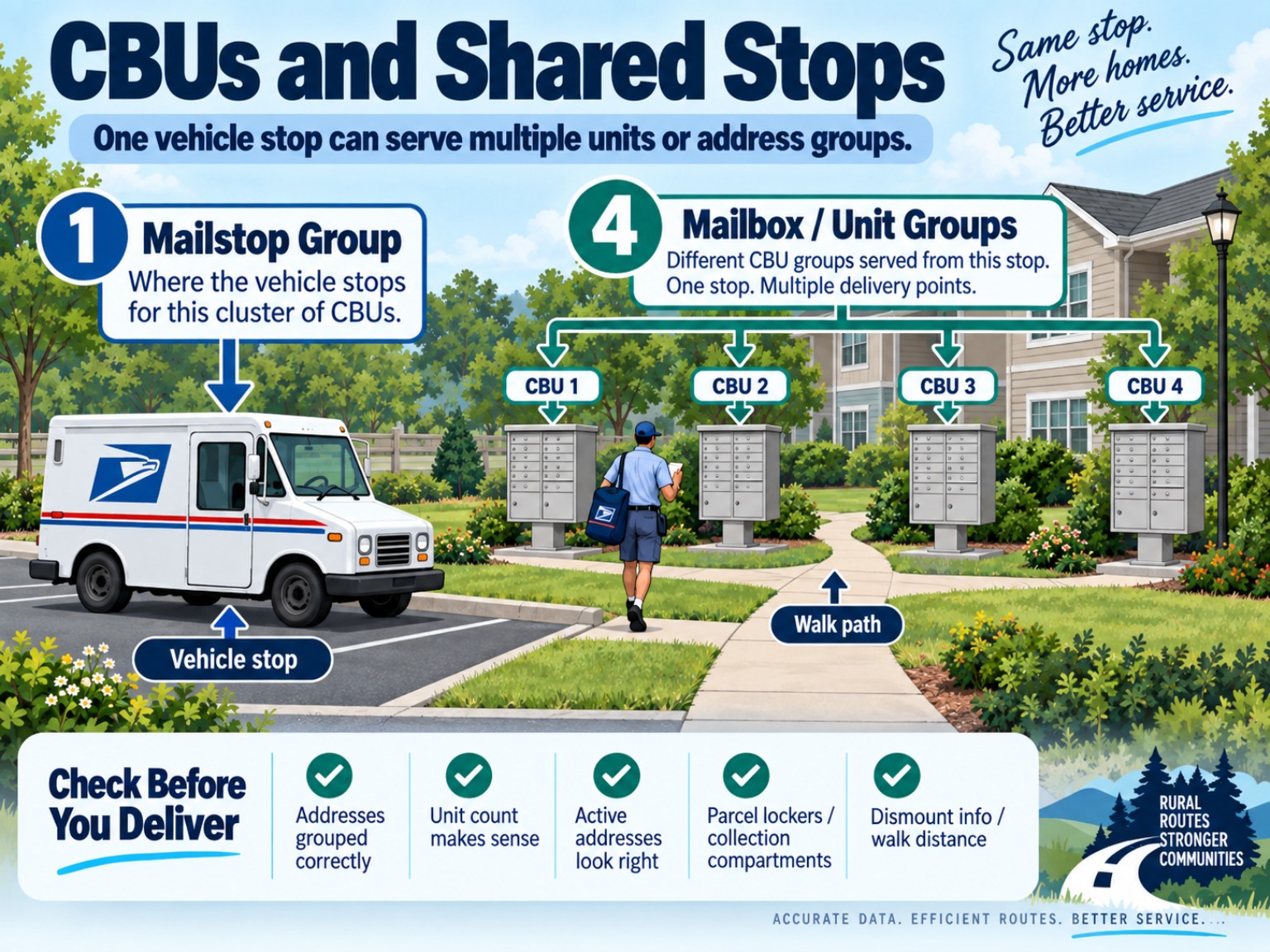
- Are the correct addresses grouped to the stop?
- Does the number of CBU or centralized-delivery units make sense?
- Do the active-address totals make sense?
- Are parcel lockers and collection compartments represented correctly where applicable?
- Does the dismount information match the actual stop?
- Does the known walking/dismount distance still make sense?
Do not guess at address status
If an address looks vacant, inactive, newly occupied, or otherwise wrong, compare it with the edit book and the current address record instead of changing it from memory.
The same goes for a new box, a moved box, a new CBU, or a delivery that changed sides of the road. Figure out what actually changed, make sure the source address information is being maintained correctly, then map the delivery geometry that exists now.
Before leaving DPM, ask one question
If somebody who had never run your route looked only at these delivery points, would they understand where you actually stop, deliver, park, and walk?
If the answer is no, find the point that is telling the wrong story before moving on.
Step 2 — LTM: make the road match the route
Once the delivery points are right, move to LTM. This is the line-of-travel part.
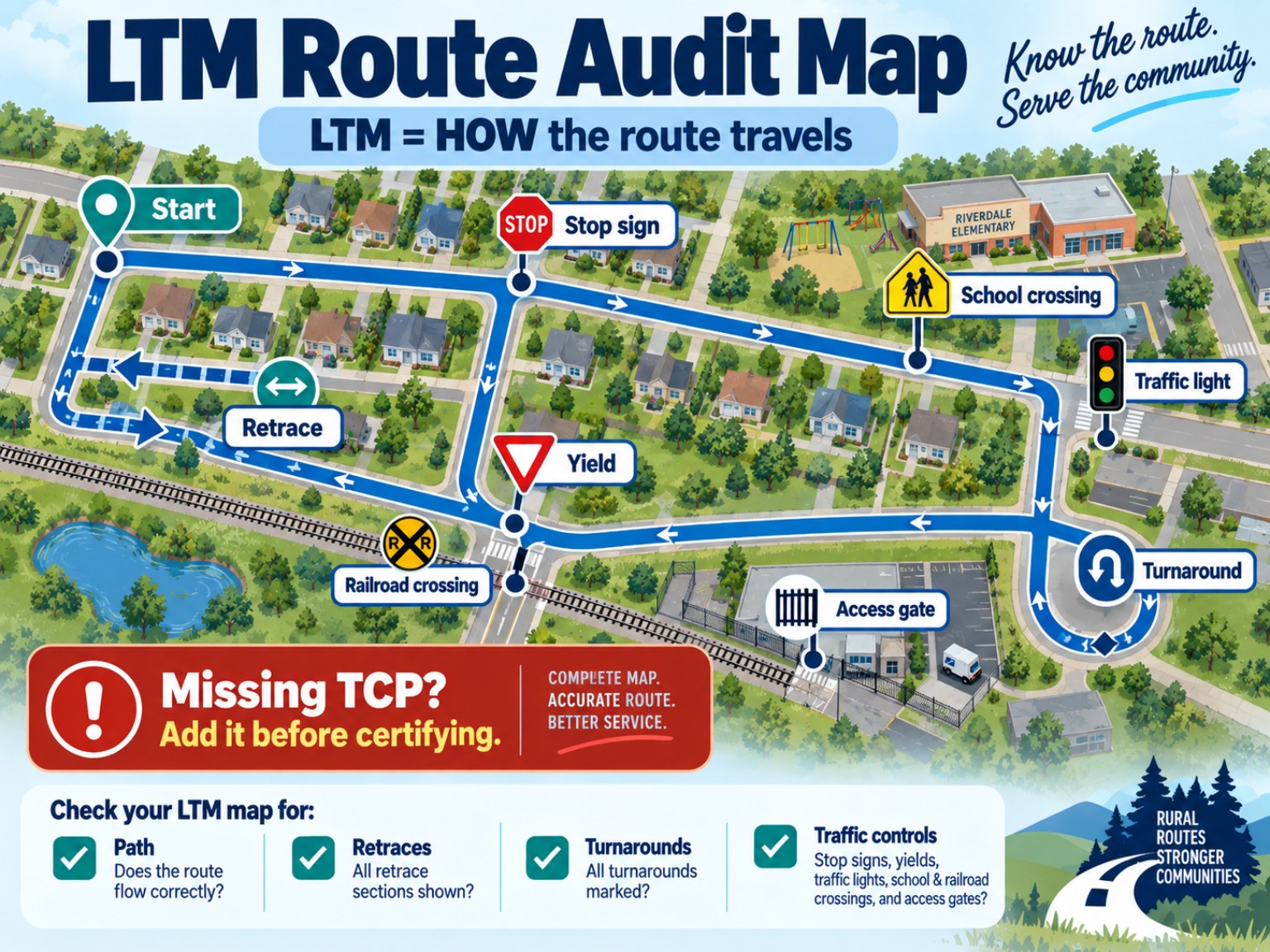
Think of LTM as tracing the route in delivery order and asking: Is this really how I get from one part of the route to the next?
First check the path
- Confirm the route start location.
- Follow the route in delivery order.
- Make sure the path uses the roads you actually use.
- Check every retrace and turnaround.
- Watch for divided roads, private roads, dead ends, gates, or places where the computer suggests a path you do not actually take.
- If LTM offers or changes a path, look at what changed before accepting it.
- Continue through the end of the route. Do not assume the second half is correct because the first half looked good.
Then check the traffic control points
Traffic control points are easy to overlook because you drive past them every day. Do not rely on memory alone. Follow the line of travel and compare it with what is physically on the route.
- Stop signs.
- Yield signs.
- Traffic lights.
- School crossings.
- Railroad crossings.
- Access gates where applicable.
Step 3 — compare the totals before you certify
Now stop looking at individual dots and look at the route as a whole. This is where a missing stop, lost dismount, bad unit count, strange mileage number, or missing traffic control can become easier to spot.
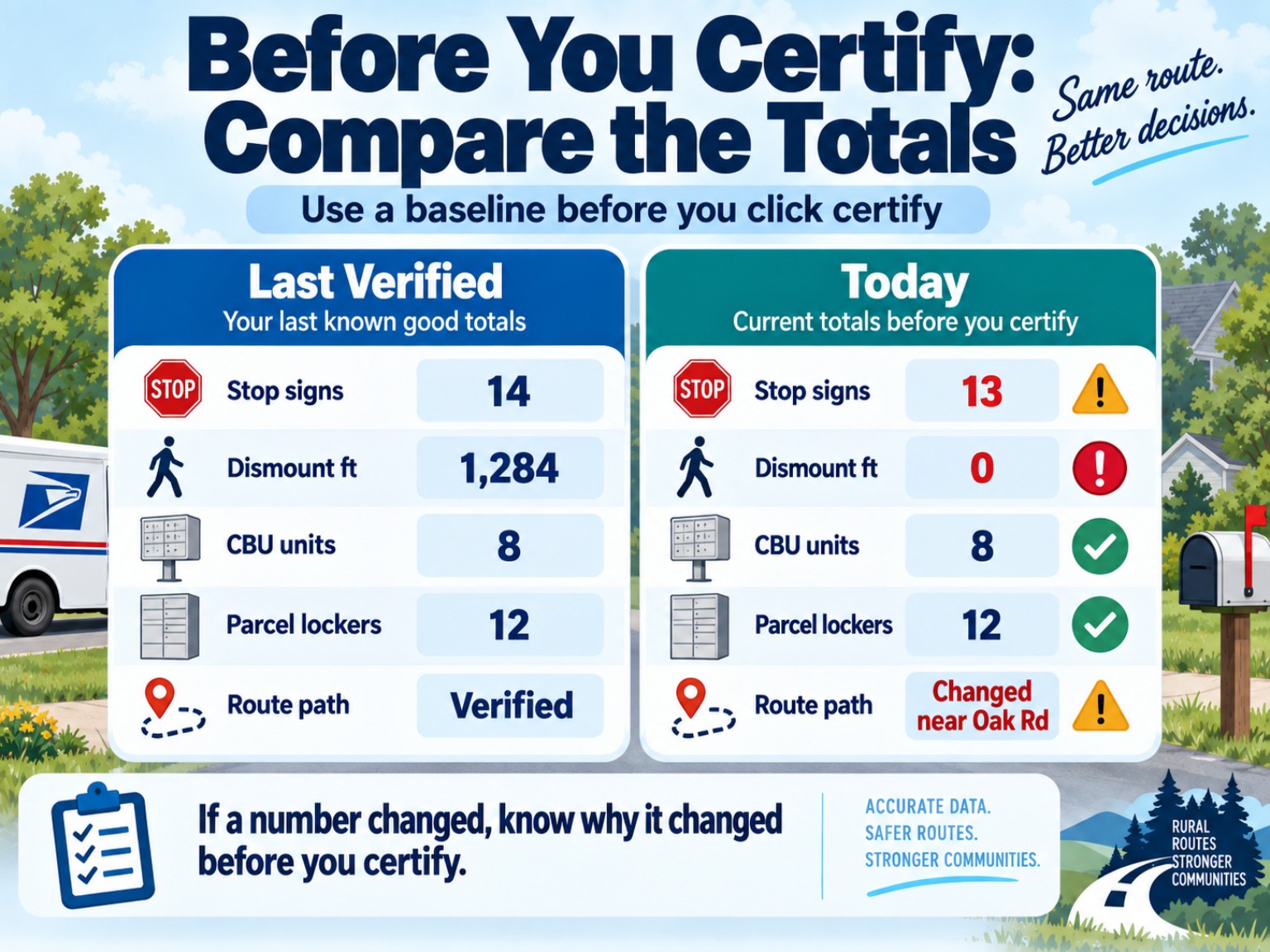
- Do the delivery and box totals look believable?
- Do CBU/unit and parcel-locker counts match the route you actually service?
- Do the dismount totals and distances make sense?
- Does the line of travel start, run, retrace, and return the way the route really does?
- Does the mapped mileage look plausible compared with what you know about the route?
- Do the traffic-control-point counts and types make sense?
- If a number suddenly changed from your baseline, can you explain why?
If something looks wrong, do not certify the wrong thing just to finish
A mapping session is not a speed test. If you find something you do not understand, stop on that item and ask what record or screen controls it.
Some problems belong in DPM. Some belong in LTM. Some start with the edit book or address-management process. The useful question is not, “Which button fixes this fastest?” It is, “Which record is actually wrong?”
If management is rushing you or you were never trained
Ask them to work the review with you and slow the process down enough to make the route accurate. A USPS Office of Inspector General review describes delivery-unit management reviewing and finalizing DPM and LTM in the presence of the assigned rural carrier, with the carrier certifying the mapping accuracy.
I would not turn that into, “I get unlimited time.” I would say: “I need enough time to accurately review what I am being asked to certify.”
If you are being asked to certify information you know is wrong, or the route is being mapped without your meaningful review, write down the date, route, and specific problem and contact your steward for the current process.
The five-minute final check
- DPM: mailstop, box, DDD stop, and door points make sense.
- DPM: shared stops, CBUs, unit counts, parcel lockers, and dismount information make sense.
- LTM: start point, road path, retraces, turnarounds, and return are correct.
- LTM: traffic control points are present and correctly typed.
- Summary: boxes, dismounts, traffic controls, and mileage pass the common-sense test.
- Only then certify the route.
When you are done, save what you verified
Keep a simple carrier-side record of the important totals and any corrections you made. If the system lets you print or save the final route summary, driving directions, map, or submission page, keep a copy where you can find it.
Next time you review the route, you should not have to start from zero. Compare the new numbers with the last verified version, investigate what changed, correct what needs correcting, and move on.
That is the bigger idea: mapping should become maintenance, not a once-a-year mystery.
If this is your first time, remember only these three things
- DPM = WHERE delivery happens.
- LTM = HOW the route travels.
- Do not certify a number, point, or path you know does not match the route just because the screen is ready for the next click.